FLORIDA STATE UNIVERSITY
WJB
▶
START CLASS
⚠ DEMO ONLY - ROOM VIEW (Shift+1 / Shift+2 to switch modes):
LEFT PROJECTOR:
—
RIGHT PROJECTOR:
—
Preview Screen
LIGHTS
ALL ON
LECTURE
VIDEO
VIDEO 2
ALL OFF
Preview Screen
1
POWER ON
→
2
SELECT INPUT
→
3
PREVIEW
→
4
PROJECT
INPUT SOURCES
DESKTOP PC
MAC
LAPTOP
DOC CAM
CAMERA
BLU-RAY
WIRELESS STREAM
CAMERA PRESETS
ANGLE 1
ANGLE 2
SCREEN CONTROLS
LEFT PREVIEW
RIGHT PREVIEW
PLAY AUDIO FROM SELECTED INPUT
PROJECT
FREEZE
HIDE & MUTE
SELECT DOCUMENT CAMERA
LEFT
Left Doc Cam
RIGHT
Right Doc Cam
BLU-RAY CONTROLS
⏪
REW
▶
PLAY
⏩
FWD
⏮
SKIP
⏹
STOP
⏸
PAUSE
⏭
SKIP
▲
UP
⏏
EJECT
◀
LEFT
⏎
ENTER
▶
RIGHT
▼
DOWN
☰
MENU
✕
PROJECTOR CONTROLS
LEFT
Project Left
BOTH
Project on Both
RIGHT
Project Right
✕
HIDE & MUTE CONTROLS
LEFT
Hide & Mute Left
BOTH
Hide & Mute Both
RIGHT
Hide & Mute Right
✕
FREEZE CONTROLS
LEFT
Freeze Left
BOTH
Freeze Both
RIGHT
Freeze Right
POWER
POWER
ON
POWER
OFF
PROJECTOR SCREENS
LEFT
SCREEN
UP
RIGHT
SCREEN
UP
LEFT
SCREEN
DOWN
RIGHT
SCREEN
DOWN
VOLUME
MIC
VOLUME
MAX
MIN
50%
MAIN
VOLUME
MAX
MIN
50%
HELP
POWER OFF PROJECTORS?
Are you sure you want to turn off the projectors?
NO, CANCEL
YES, POWER OFF
PLEASE WAIT
SYSTEM WILL BE AVAILABLE
PROJECTORS ARE WARMING UP!
FLORIDA STATE UNIVERSITY
Technical Setup
VEQ-4
Return To Main Page
Overflow Controls
←
BACK
HELP CENTER
✕
COMMON TASKS
How to Project Content
Play Sound Through Speakers
ICON GUIDEBOOK
How to Project Content
Animation Coming Soon
ICON GUIDEBOOK
Input Sources
DESKTOP PC
Built-in classroom computer
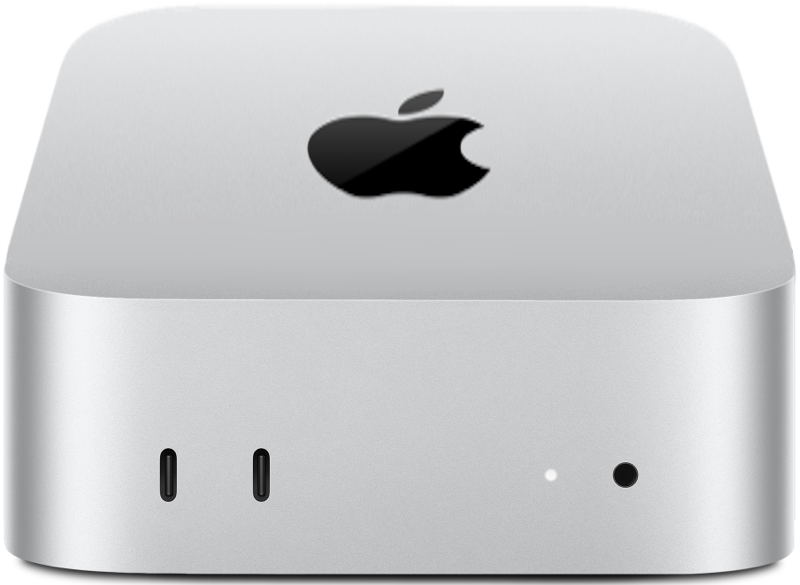
MAC
Built-in Apple computer (Mac Mini) already connected to the system
LAPTOP
Use the HDMI or USB-C cable at the teaching station to connect your laptop
DOC CAM
Document camera to show physical documents, books, or objects to students
CAMERA
Room camera with saved presets. Use these to quickly switch between different angles
BLU-RAY
Play movies or videos from Blu-ray discs. Control playback with on-screen menu
WIRELESS STREAM
Share your screen wirelessly from your device without any cables
Screen Controls
PREVIEW
Check what content looks like on your screen before students can see it
PROJECT
Show your content on the projectors around the room
HIDE & MUTE
Hide the projector screens and mute audio (when all screens are hidden, audio is also muted)
FREEZE
Pause what students see while you prepare the next slide or page in private
PLAY AUDIO
Send sound from your selected input through the classroom speakers
Power & Screens
POWER
Turn all projectors on or off
▶
START CLASS
Quickly power on, select desktop, preview on all screens, project to all screens, and play audio - all in one click
SCREEN UP
Raise the physical projector screen to reveal the whiteboard or wall behind it
SCREEN DOWN
Lower the physical projector screen for projecting content to students
MUTE
The speaker icons below the volume sliders toggle between muted and unmuted. Click to switch between the two states